

Tips and references
Variable tips#
Backgrounds#
- Use background (standard color: white) for backgrounds
- Use muted for muted backgrounds
- The secondary background is used for secondary buttons — if you want secondary buttons to look good on muted backgrounds, they will likely need to be a bit darker than the default muted (neutral 100)
Foreground#
In general, use the Foreground token for text and icons.
Use Foreground Muted for muted text and icons.
Accent#
The Accent token is muted by default in shadcn, but in our kit it is a bright color, to be able to support accented variants (see the menu item). We do this to simulate Menu Accent > Bold from shadcn/ui create.
Border and input variables#
Both “border” and “input” refer to borders.
Styles#
The Obra shadcn/ui kit supports different styles. The Community Edition ships with the Nova style. Pro customers can download files for any of the 8 available styles in the customer center — look at the title of the file you’ve downloaded to see which style it uses.
For kit versions before all 8 styles shipped as separate files, see the “Simulating other shadcn/ui styles” section of the legacy color docs.
Alpha colors#
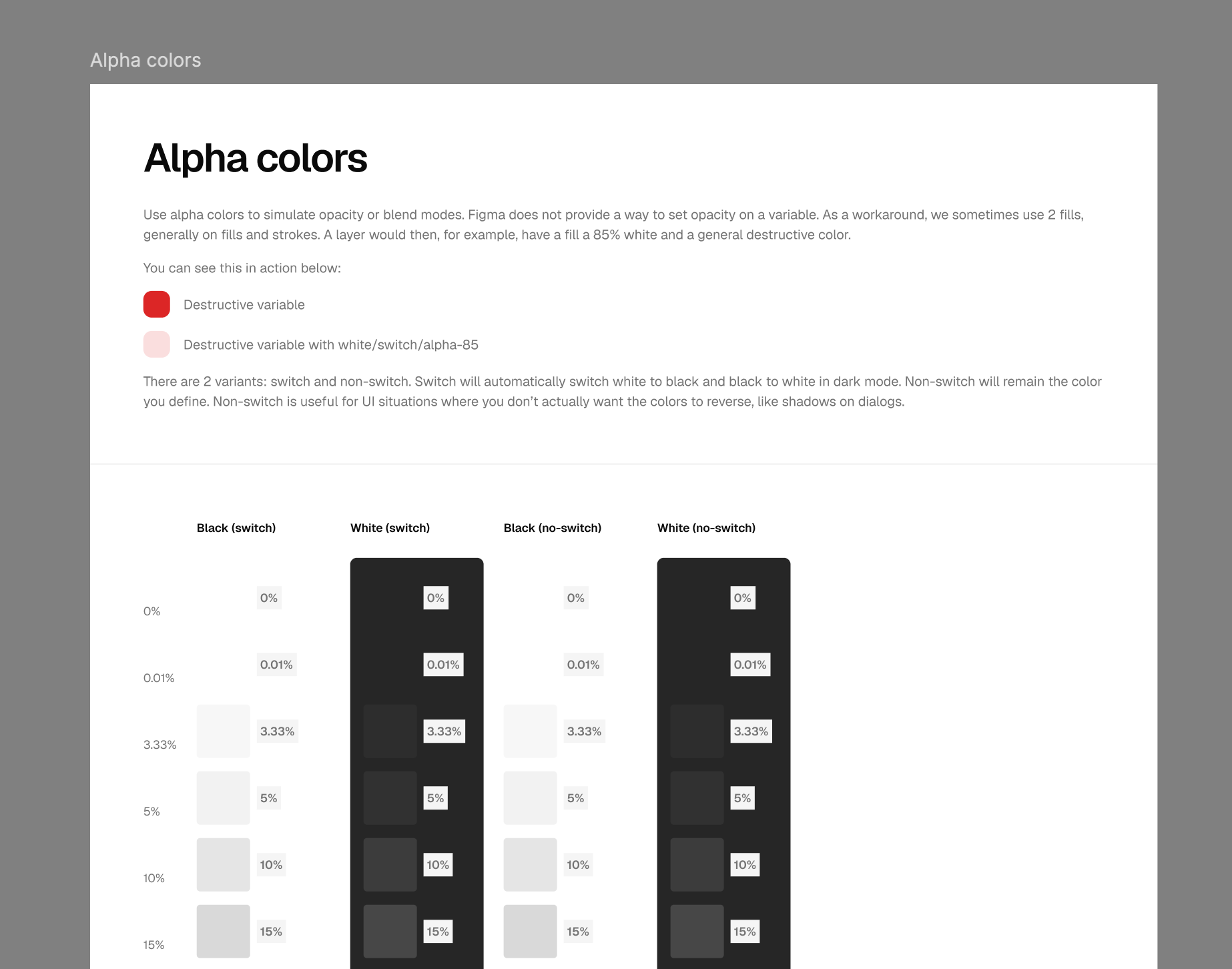
Use alpha colors to simulate opacity or blend modes. Figma does not provide a way to set opacity on a variable. As a workaround, we sometimes use 2 fills, generally on fills and strokes. A layer would then, for example, have a fill at 85% white and a general destructive color.
There are 2 variants: switch and non-switch.
- Switch automatically flips white to black and black to white in dark mode. Use it for overlays and highlights that should always read against the current background.
- Non-switch keeps the color you define, regardless of mode. This is useful for UI situations where you don’t actually want the colors to reverse — like shadows on dialogs.
Working with older kit versions#
If you’re on a kit version from 1.0.0 through 1.7.0, the colors system worked differently — see the legacy color docs for how raw colors, brand colors, unofficial variables, and the hex-to-OKLCH mapping worked before the 1.8.0 rework.